Content Design Guidelines
Contents
0. About this guide
1. Content design principles
- Be clear
- Write for scanning
- Write for a young reading age
- Use the active voice
- Use an appropriate tone
2. UI content and patterns
3. References
0. About this guide
0.1 Who it’s for
This is a guide to help you write content for digital products. It’s really aimed at anyone who’s designing, building, or writing any words in the digital team. There’s a bit of general good advice for all kinds of writing, then some focus on UX microcopy and longer web content.
0.2 Updates and additions
This guide is a living document. It is:
- Owned by the content design team
- Open to suggestions from anyone
- Updated based on user needs and evidence
If the guide doesn’t help users, we change the guide.
If you don’t find what you’re looking for in this guide, you might find it in the RPF Style Guide – a big, Foundation-wide document with writing tips and a glossary. Or you can message me, Adam (hello 👋), to include it in the future. I'm also happy to talk all things content, any time.
1. Content design principles
How we think and decide about words.
1.1 Be clear
Clarity and clear language means using simple and familiar words. It also means writing with a good structure and short sentences.
Clarity is more important than politeness, friendliness, or brand expression. It’s also more important than brevity. Though still be as concise as possible and avoid padding.
If users don’t understand the message, nothing else matters.
Use:
- Clear, specific language
- Familiar words
- Direct instructions
Avoid:
- Vague system language
- Euphemisms
- Padding or reassurance that doesn’t help users act
| ❌ Replace this: | ✅ With this: |
|---|---|
| Your changes could not be processed at this time. | We couldn’t save your changes. Try again. |
Why use clear language?
The more familiar words are, the faster the reader understands what they mean. This is because they’ve already developed a natural learning for those words. It’s minimal effort for their brain to process.If we write with clear language, we’re helping all people read.
How to introduce a new term or phrase when you can’t use a familiar word
There are times when you’ll need to introduce an audience to a new word or concept.
To understand a new term, readers need:
- Explanation the first time it’s used
- Explicitness - not merely an implied meaning
- No assumption that they already know a term or will recognise something implied
| ❌ Replace this: | ✅ With this: |
|---|---|
| Try out Scratch in our code editor! | Try out Scratch – a block-based coding language that's great for beginners. |
| Add a Teacher. | Add a Teacher – someone who can manage classes and view student projects. |
| This Design project guides you to use your new skills and encourages you to make design choices based on your interests. | This is a design project, where you’ll use your skills to make design choices based on your interests. |
If you don’t introduce a new term properly, you could alienate the reader, generate effort (causing them to give up), or they might assume an understanding and get the wrong idea.
1.2 Write for scanning
Real users don’t read every word on the web. They scan.
Assume our users are:
- Busy
- Distracted
- On small screens
- Trying to complete a task quickly
What this means:
- Use short sentences
- Put the most important information first
- Break content into short sections
- Use headings and lists to support scanning
| ❌ This is hard to scan: | ✅ This is easier to scan: |
|---|---|
| If you no longer want to receive email notifications about updates to your classes, you can change your preferences in your account settings. | To stop receiving email notifications: 1. Go to Account settings. 2. Turn off Email notifications. |
1.3 Write for a young reading age
This ties closely with using clarity and clear language.
Writing for a younger audience:
- Improves accessibility
- Helps people understand things quicker
- Builds trust and confidence
As a general rule:
- Use simple, everyday words
- Use short sentences and keep to one idea at a time
- Be direct
- Avoid jargon, idioms, and abstract language
| ❌ Replace this: | ✅ With this: |
|---|---|
| In order to reset your password, you will be required to enter your registered email address below. | Enter your email address to reset your password. |
Reading age guidance
- Content for ages 9 and above: aim for a reading age of 9.
- Content for ages 6 to 8: use limited text and aim for their specific reading age.
- Content for ages 5 and under: keep text to a minimum and rely more on visual cues.
Use a tool like Hemingway to sense-check reading age.
Refer to the Age Appropriate Guidelines for detailed guidance.
This isn’t just for young people
Writing this way also helps adults who:
- have poor working memory
- are easily distracted
- are slower at reading or processing information
- have lower literacy levels
- have difficulty identifying the main points from a long passage of text
- have a very literal understanding of language
- are reading in a rush
- have English as their second language
It can also help people with certain conditions or impairments. For example, people who:
- have learning difficulties
- are dyslexic
- are autistic
- have ADHD
- have anxiety
- are visually impaired and using a screen reader
1.4 Use the active voice
Most of the time, writing in the active voice is better than the passive voice.
Using the active voice:
- Makes it clear who is doing what
- Uses fewer words and is easier to understand
- Sounds more direct and natural
- Reduces formality and distance between us and the user
The passive voice can feel vague, overly formal, and more wordy.
| ❌ Passive voice: | ✅ Active voice: |
|---|---|
| An email will be sent to you. | We’ll send you an email. |
| The form must be completed before continuing. | Complete the form to continue. |
| Your changes were saved. | We saved your changes. |
In rare occasions, the passive voice can help
As a general rule, always use the active voice. But the passive voice can be useful for front-loading headers on a web page.
Passive: Applications are now open
Active: We have opened applications
Notice how your eyes are drawn to the first few words? Using the passive voice for headings means the subject is at the beginning of the lines. The sentence is harder to read, but the important bit catches your attention.
1.5 Use an appropriate tone
Note: This section is not about our brand Tone of Voice. This is about how we use tone when writing for our products.
Default to a neutral, respectful, and calm tone.
Avoid:
- Condescending language (“just”, “simply”)
- Over-formal language
- Being overly enthusiastic
| ❌ Replace this: | ✅ With this: |
|---|---|
| Simply enter your details. | Enter your details. |
| Oops! Something went wrong! | Something went wrong. |
| Success! You’ve successfully completed the setup of your account! | Your account is set up! |
Saying please
In the UK we say please a lot. We think we’re being polite, but it’s more polite to get to the point and respect the reader’s time and energy.
Plus saying please can sound condescending, particularly for standard instructions:
❌ Please enter your email address
✅ Enter your email address
It can be appropriate to say please when users are inconvenienced or required to wait:
❌ Wait while we save your changes
✅ Please wait while we save your changes
Though as I wrote this example I realised it sounds nicer without the please. See:
✅ We are saving your changes
2. UI content and patterns
Use this section when you write, review, or design UI copy.
2.1 Error messages (WIP)
Error message content is still WIP. Feel free to use and give me feedback on how easy it is to follow.
When something fails, tell the user what happened and how to fix it quickly and accessibly.
Tone and wording:
- Stay calm. Users might be stressed or frustrated.
- Be specific and direct. Use simple, familiar words.
- Use neutral phrasing, like “We couldn’t…” or “Enter…”.
- Keep messages short and actionable. If more explanation is needed, include a short hint or link to help.
Avoid:
- Vague system language and error codes
- Blaming the user
- Humour
- Exclamation marks
- Unnecessary apologies
| ❌ Replace this: | ✅ With this: |
|---|---|
| Error 403. Request failed. | We couldn’t save your changes. Try again. |
| You entered an invalid code. | Enter the 6-digit code shown in your app.. |
| Oops! That didn’t work! 😅. | Something went wrong. Try again. |
Accessibility:
- Explain the problem and the next step in the same message.
- If the error relates to a specific field, put the message next to the field.
- Summarise all errors at the top of a page, with links to each field when appropriate and possible.
- Use a visible style and a red border or equivalent to connect the field and message.
- For screen readers, include the prefix “Error:” in the code, but don’t include it in the copy that shows in the UI.
- Don’t remove user input when showing errors to help users correct the mistakes.
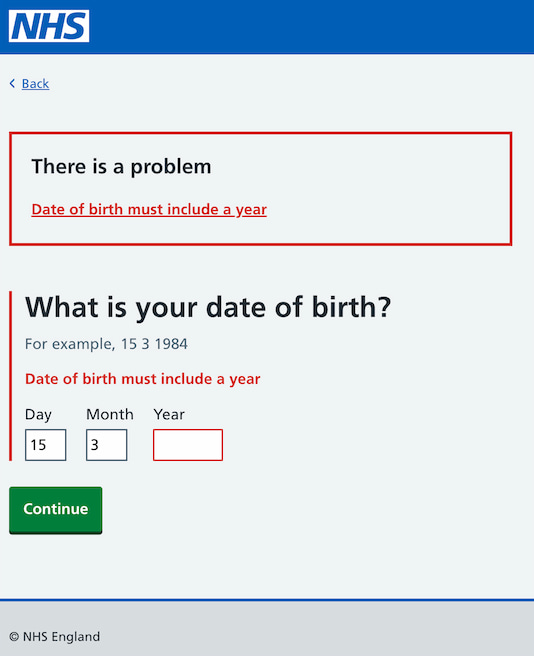
What’s good about this example:
- A summary of page errors at the top.
- The error links to the related field.
- The error message appears next to the field.
- The styling clearly calls out the error.
- The inputs have not been cleared.
Error message templates
| Type and template | ❌ Don't do this | ✅ Do this |
|---|---|---|
| Format or validation error: | ||
| Enter a [type] in the correct format, for example [example]. | Invalid input | Enter an email address in the correct format, like name@example.com |
| Missing info: | ||
| Enter your [field name]. | This information is required. | Enter your password. |
| System or save error: | ||
| We couldn’t [save/send/submit]. Check your connection and try again. | An unexpected error has occurred. | We couldn’t save your changes. Check your connection and try again. |
2.2 Error messages: For unavailable pages
Use a dedicated page when:
- A page cannot be found
- A session has timed out
- The service is unavailable
- Access is restricted
Include:
- A clear heading
- A brief explanation
- Clear next steps
Like all error messages, keep the copy factual, calm, and focused on what the user can do next.
Avoid technical terms and error codes like “404”.
Examples
Page cannot be found:
Page not found
If you typed the web address, check it is correct.If you pasted the web address, check you copied the entire address.
If the web address is correct or you selected a link or button, contact us for more help.
Session timed out:
You’ve been logged out
To help keep your account secure, we logged you out because you were inactive for a while.Log in again to continue.
Log in
Service unavailable (planned maintenance):
Sorry, this service is unavailable
You will be able to use this service again from 5 pm (GMT) on Monday 19 March 2026.If you need to use the service urgently, contact us for help.
Service unavailable (generic):
There is a problem with the service
The service is temporarily unavailable. Please try again later.If this problem persists or you need to use the service urgently, contact us for help.
Access restricted:
This page is for teachers
The page you’re trying to view is only available for teachers.You’re logged in with a student account.
If you think you should be able to view this page, log out and check you’re logged in with a teacher account.
Log out
2.3 UI glossary: Robotic vs. Human words
This list focuses on words that tend to show up in UI copy and help articles.
Robotic words are less friendly and accessible then human words. They can creep into your writing when you’re trying to explain things.
Using a human word as an alternative is plainer, clearer, and warmer.
People:
| Robotic | Human |
|---|---|
| he or she | they |
| his or her | their |
| user | you |
| user | anyone |
| user | person |
| user | someone |
| users | customers |
| users | people |
Actions:
| Robotic | Human |
|---|---|
| activate | turn on |
| administer | manage |
| assist | help |
| begin | anyone |
| complete | finish |
| configure | set up |
| customize | edit |
| deactivate | turn off |
| disable | turn off |
| display | show |
| enable | turn on |
| input | enter |
| modify | edit |
| notify | let you know |
| optimize | make it better |
| present | show |
| provide | give |
| provide | include |
| provide | show |
| purchase | buy |
| purchase | pay |
| receive | get |
| remain | stay |
| retain | keep |
| submit | send |
| utilize | use |
Access:
| Robotic | Human |
|---|---|
| able to | can |
| allows you to | lets you |
| enables you to | lets you |
| gives you the ability to | lets you |
| in order to [verb], you must [verb] | To [verb], [verb] |
| in order to | to |
| required to | neet to |
| to be able to | to |
| unable to | cannot |
Relationships:
| Robotic | Human |
|---|---|
| regarding | about |
| regarding | for |
| associated with | a part of |
| additional | more |
| additional | other |
| additional | different |
| alternative | other |
| due to the fact | since |
| due to the fact | because |
| e.g. | like |
| e.g. | for example |
| such as | like |
| in lieu of | instead of |
| x and/or y | x, y, or both |
Timing:
| Robotic | Human |
|---|---|
| currently | at the moment |
| currently | now |
| currently | right now |
| following | after |
| following | next |
| in conjunction with | at the same time |
| intial | first |
| preceding | since |
| simultaneously | at the same time |
| subsequent | future |
| subsequent | later |
| subsequent | upcoming |
Things:
| Robotic | Human |
|---|---|
| credentials | username and password |
| customizations | changes |
| customizations | edits |
| customizations | settings |
| methods | ways |
| optimization | improvement |
| the system | we |
| transaction | order |
| URL | link |
3. References
3.1 Other RPF resources
- Raspberry Pi Foundation Style Guide
- EDI style guide
- Tone of voice guidelines
- Age appropriate design guidelines
- How people read on the web
3.2 External references
- Create a great style guide that people use
- Form Design Placeholders
- Writing for GOV.UK
- GOV.UK Style Guide
- GOV.UK Design System
- Forms – Web Accessibility Initiative (WAI)
- Web Content Accessibility Guidelines (WCAG) Overview
- Nielsen Norman Group – Forms Topic
- How to write error messages that actually help users
- Plain English Campaign
- Readability Guideline Project